Preparation
To use OneLogin you must have:
- OneLogin administrator account.
Raketa provides you:
- Audience (EntityID) in the following format: https://raketa.travel/ - service provider object identifier.
- Recipient in the following format: https://raketa.travel/sso/acs -

- ACS (Customer) URL Validator in the following format: ^https:\/\/raketa.travel\/sso\/acs\.*$ -
- ACS (Customer) URL in the following format: https://raketa.travel/sso/acs?clientId=RAKETA_CLIENT_ID, where RAKETA_CLIENT_ID - client id in Raketa.
After all the necessary settings you should provide to Raketa:
- X.509 Certificate (Standard Strength Certificate 2048-bit) - auto-generated certificate file.
- Issuer URL - OneLogin identifier.
- SAML 2.0 Endpoint (HTTP) -
- SLO Endpoint (HTTP) -
- Login URL - your authorization web-page URL, which we will use to redirect users to your authentication system.
Application configuration
- Log in to the OneLogin website: https://app.onelogin.com/login.
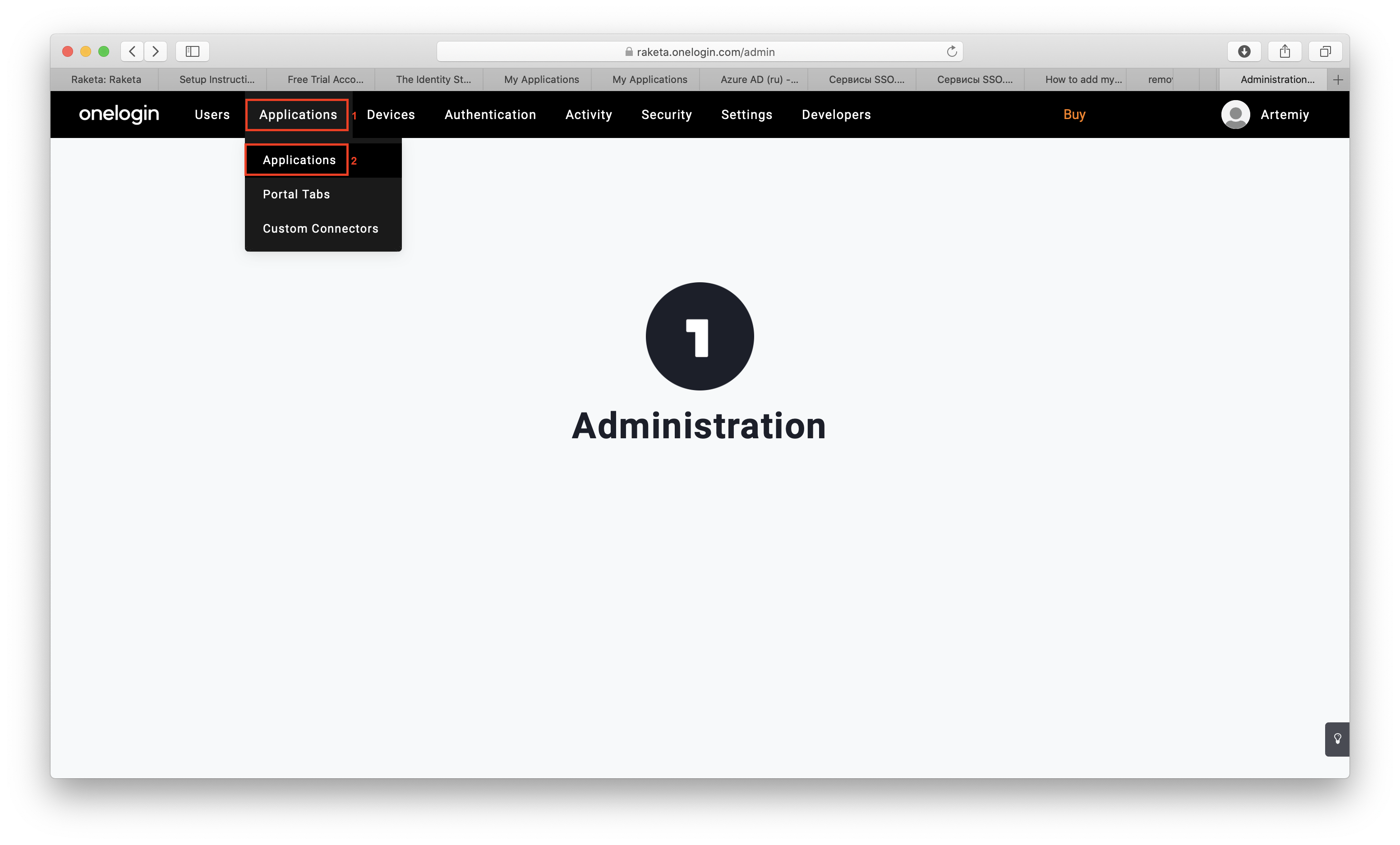
- Select application setting from the main menu "Applications" [1] → "Applications" [2].
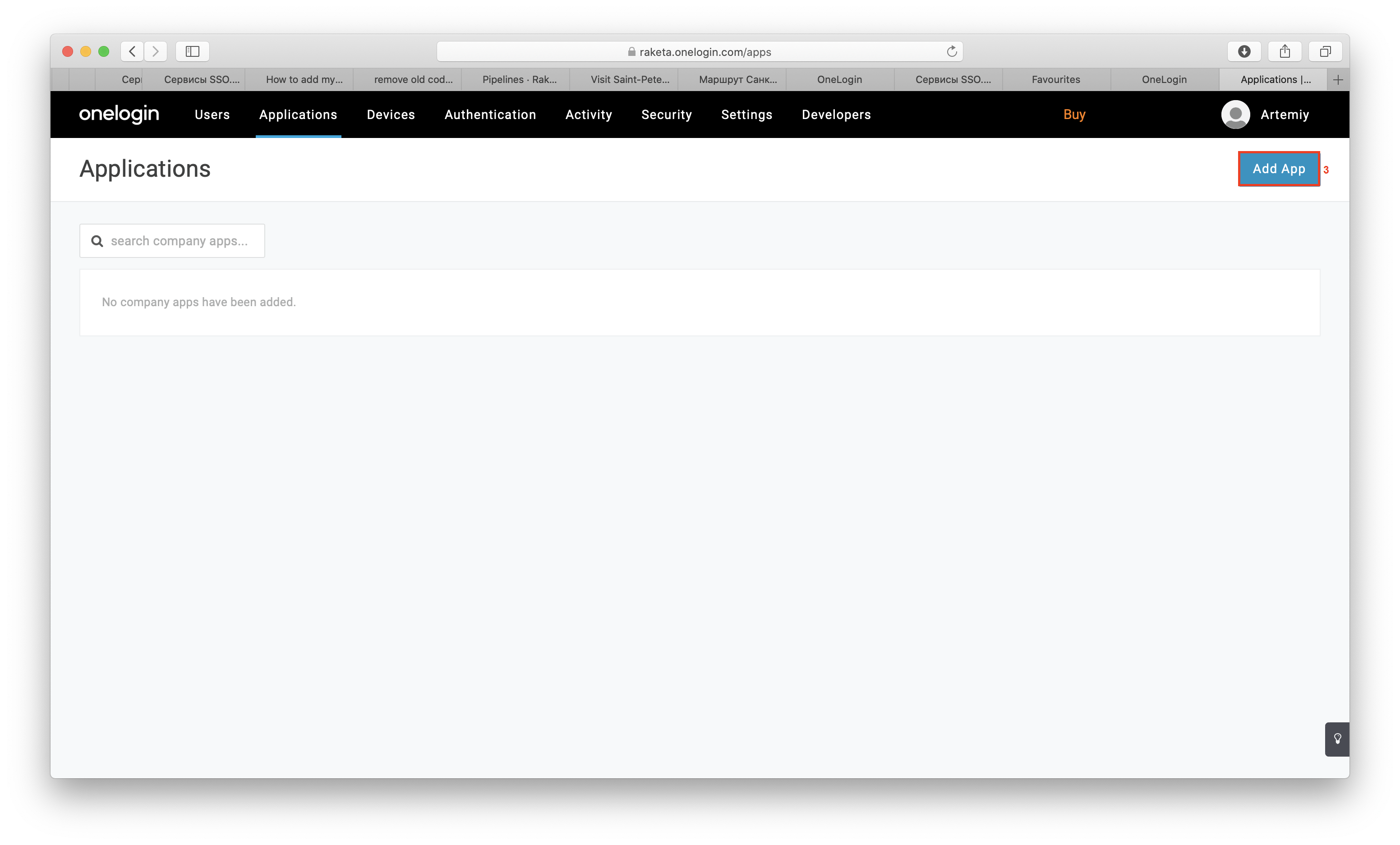
- Click the "Add App" button [3] to add a new application.
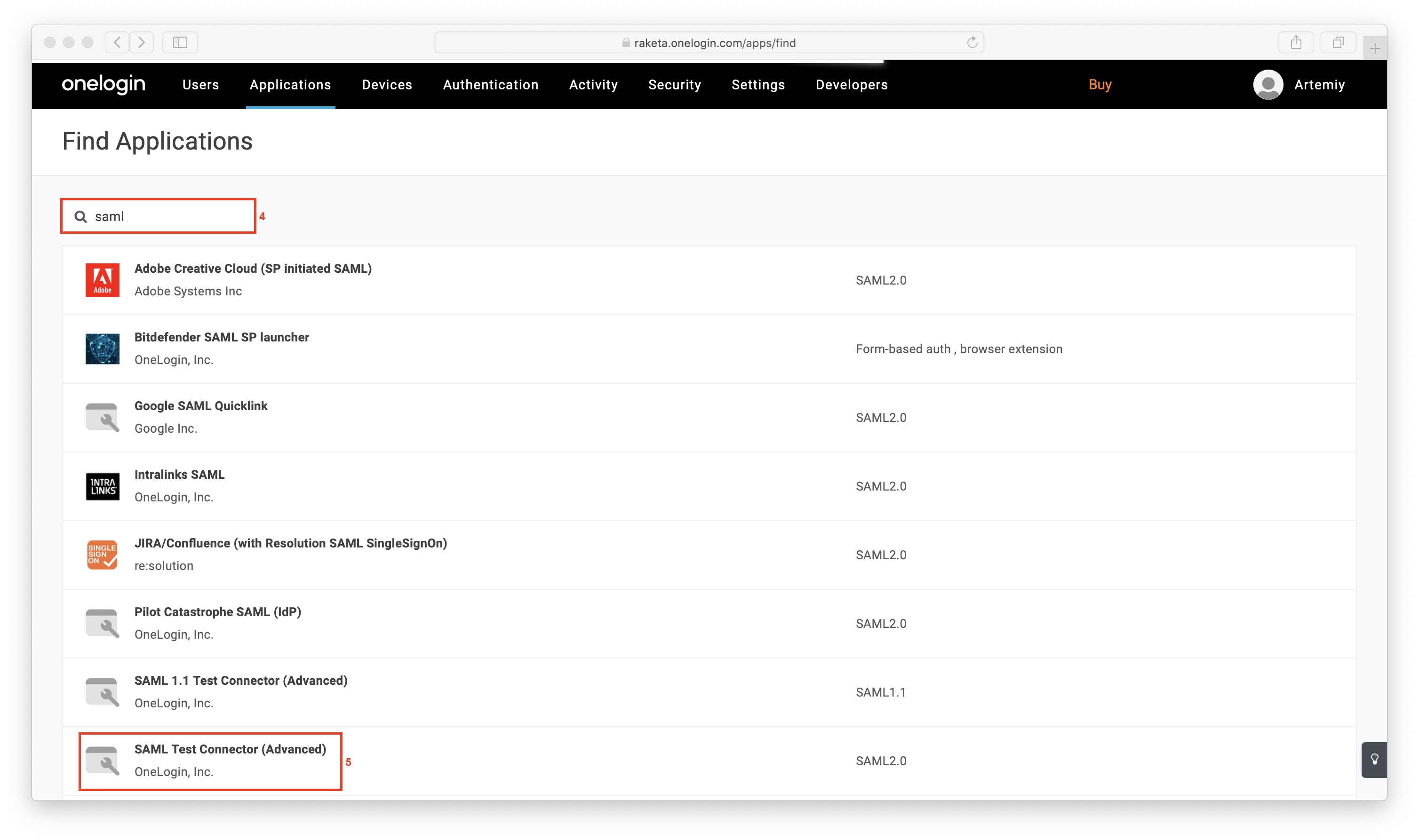
- Use the search field [4] to find the application type "SAML Test Connector (Advanced)" [5] and select it.
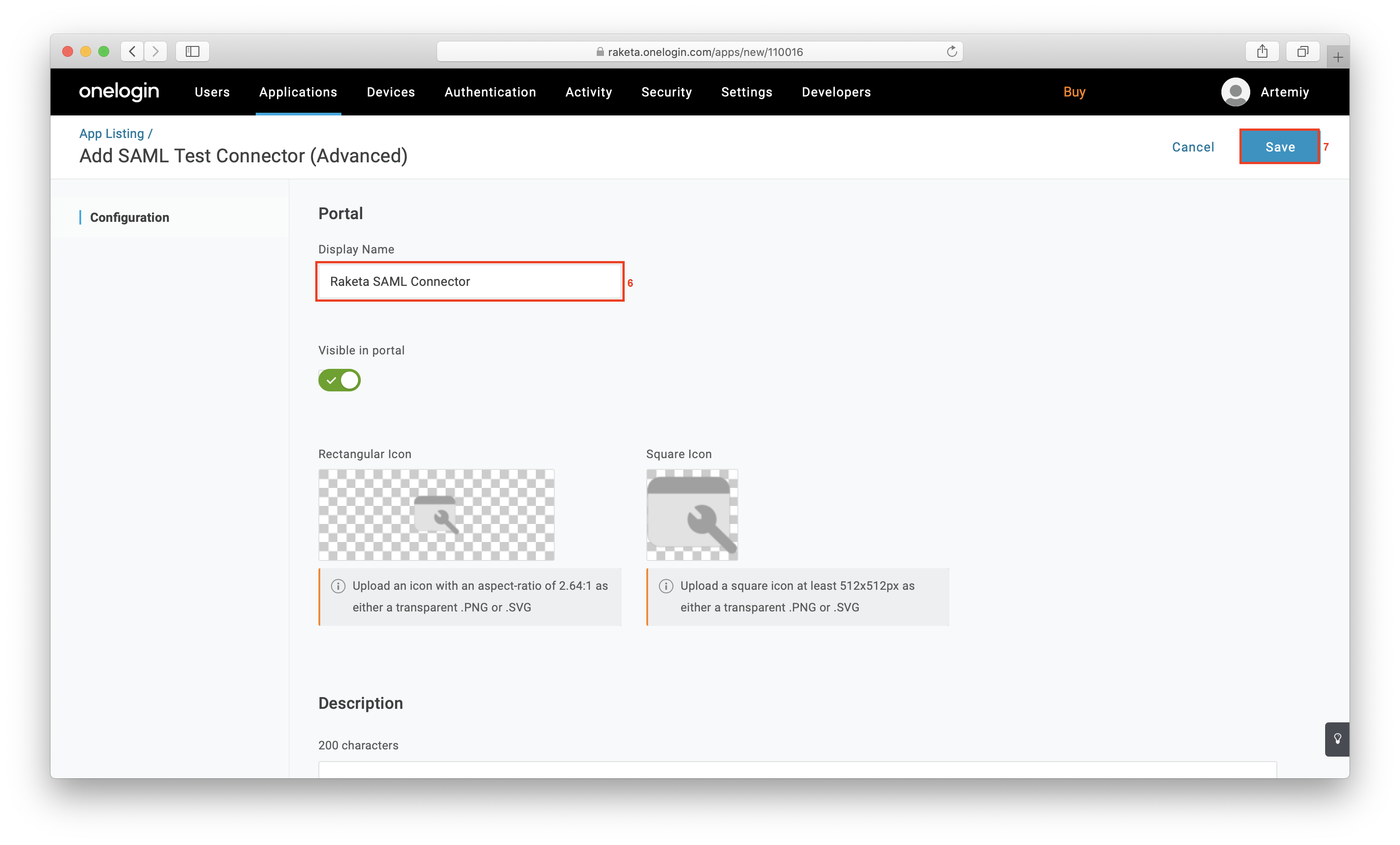
- Enter the application name [6] and click the "Save" button [7] to save the changes.
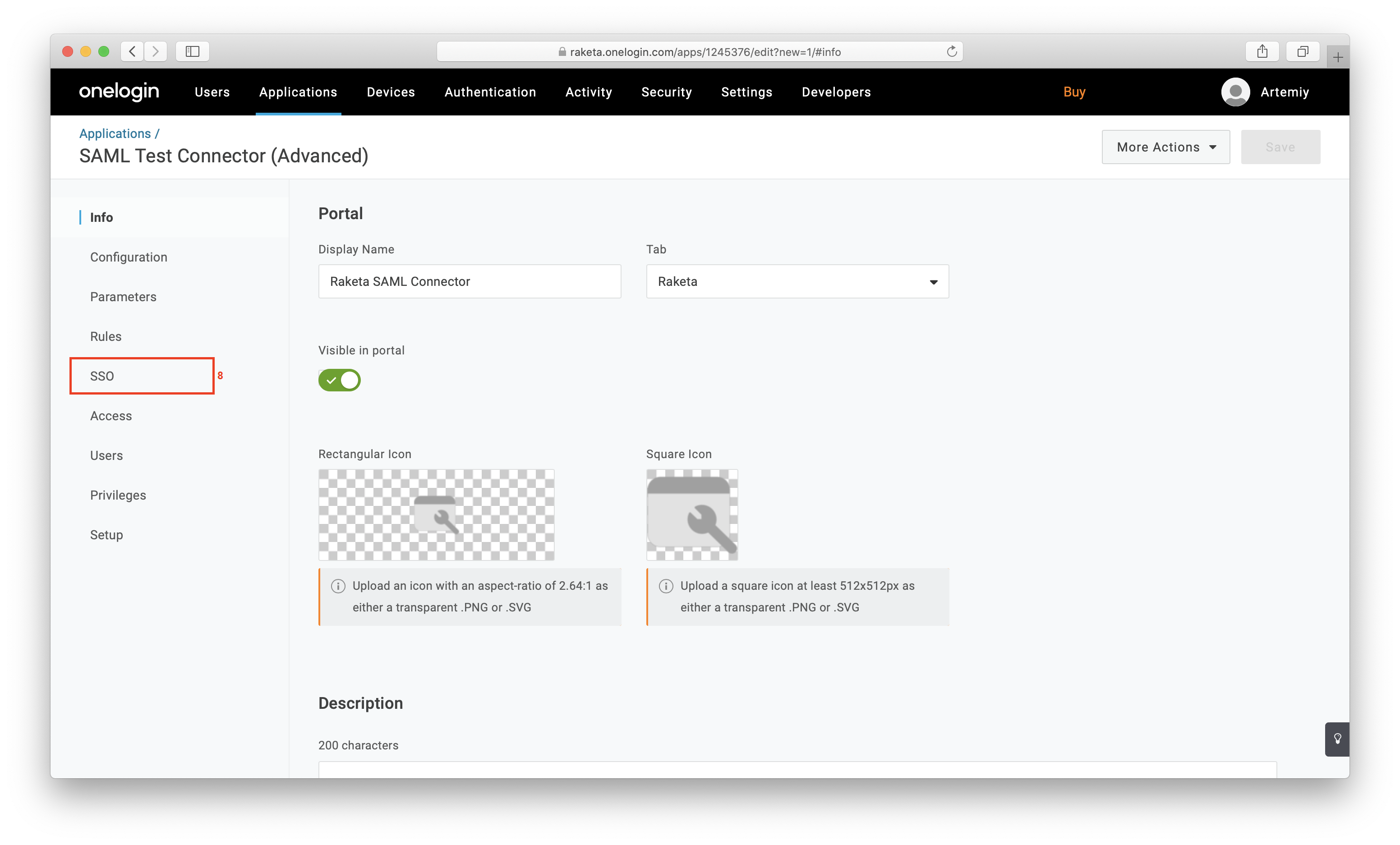
- Select "SSO" [8] from the side menu.
- The page that opens will display the auto-generated settings that you should provide to Raketa:
Issuer URL [10],
SAML 2.0 Endpoint (HTTP) [11],
SLO Endpoint (HTTP) [12].
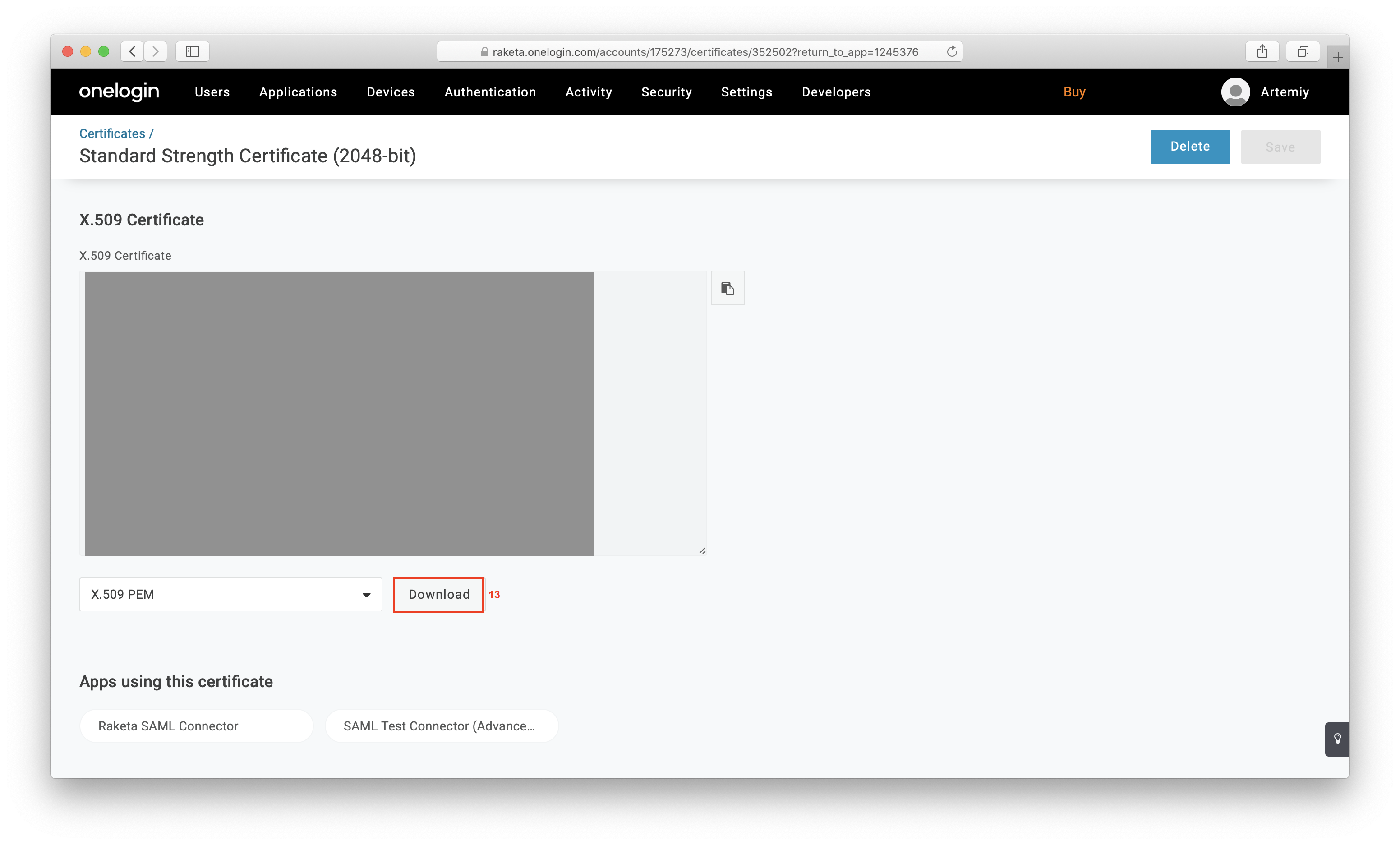
Fix them and go to download the certificate from the "View Details" link [9].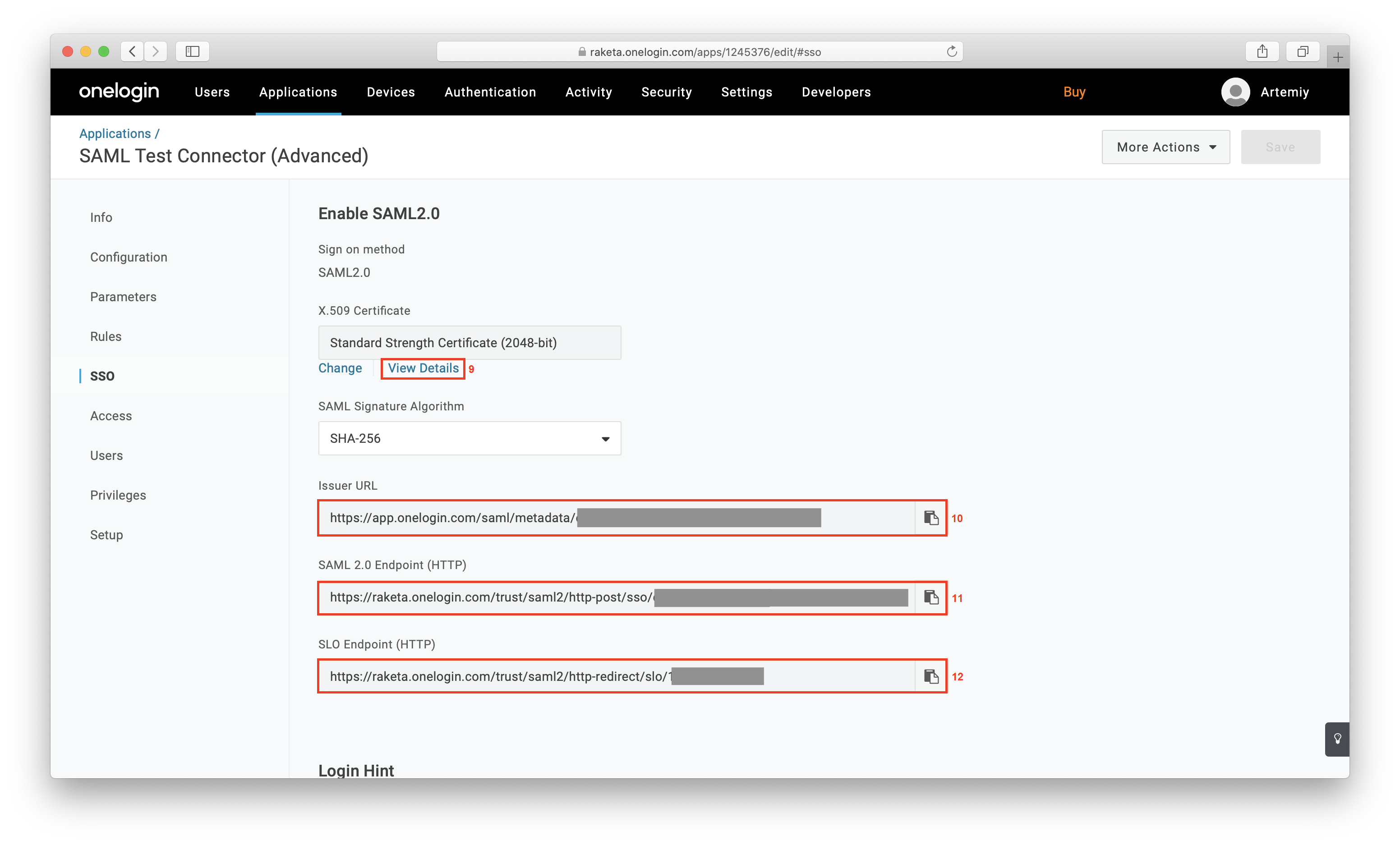
- Click the "Download" button [13] to download the "X.509 Certificate".
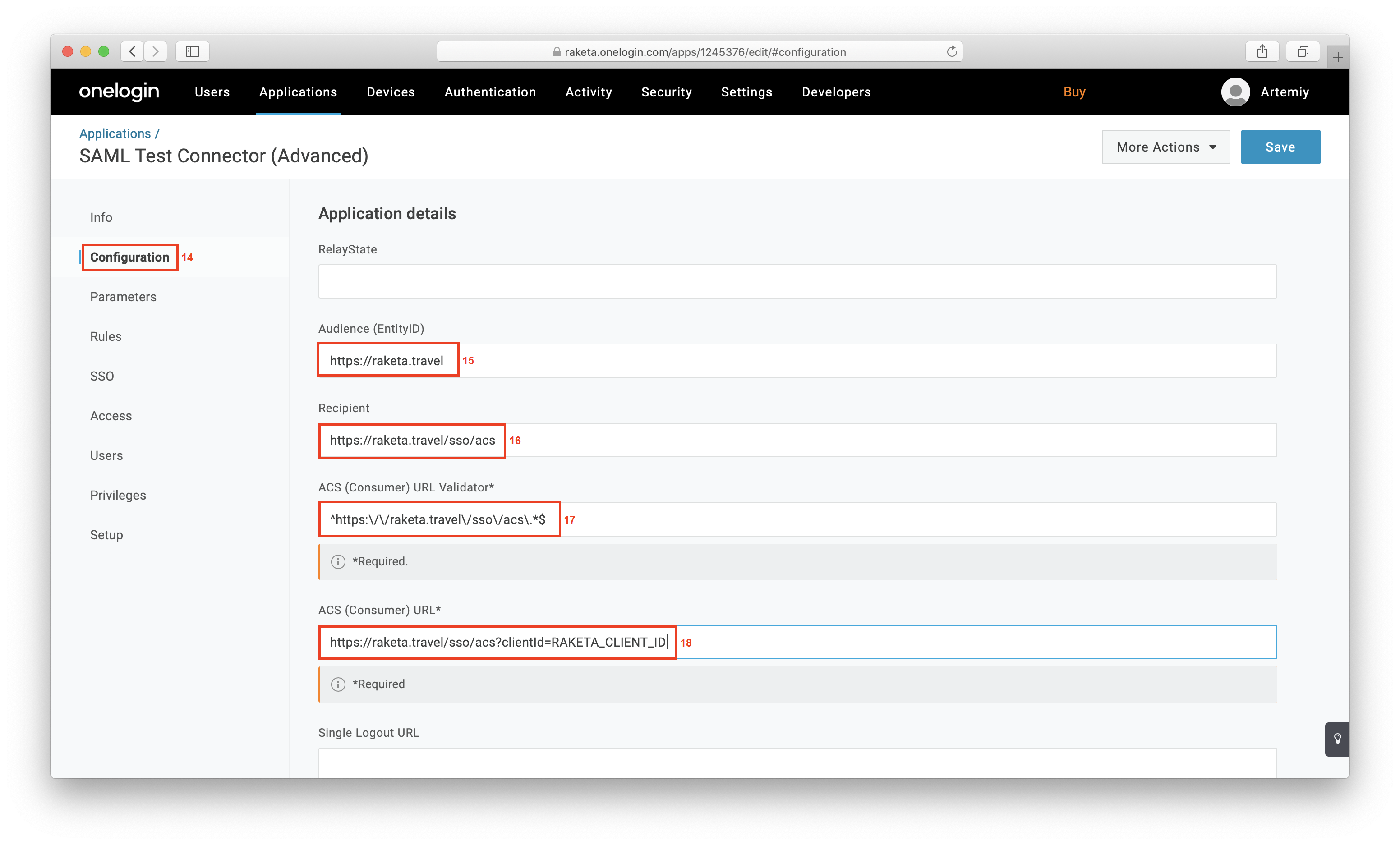
- Select "Configurarion" [14] from the side menu. Specify application details using data provided by Raketa:
- Audience (EntityID) [15].
- Recipient [16].
- ACS (Customer) URL Validator [17].
- ACS (Customer) URL [18].
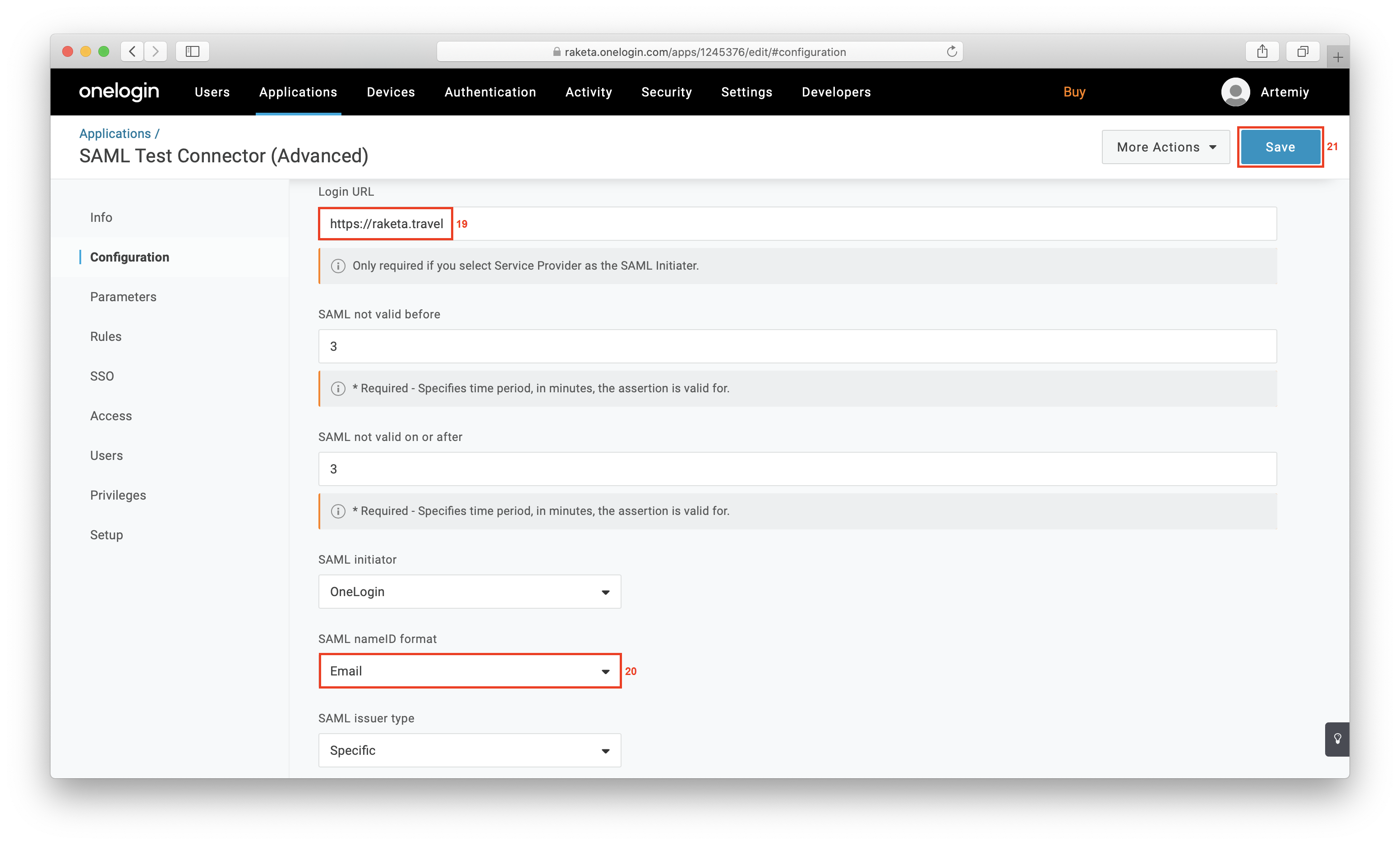
- On the same page, specify Login URL [19] and select SAML nameID format [20]: Email. Click the "Save" button [21] to save the changes.