...
After all necessary settings, you should provide:
Full table File.xlsx
- Entity ID – Your internal corporate portal URL.
- SALM SAML SSO URL – Your login page URL, which we will use to redirect users to your identity system.
- Remote logout URL – Your URL, which we will use to redirect users after they log out.
- Thumbprint X509 Certificate – SHA-256 fingerprint of SAML token signing certificate. auto-generated certificate file. You need to download, item 5.
After meeting the basic requirements, install ADFS. Configuration and installation are detailed in the Microsoft Knowledge Base:
https://docs.microsoft.com/en-us/windows-server/identity/ad-fs/deployment/deploying-a-federation-server-farm
...
- Endpoint type: Завершение сеанса SAML.
- Binding: Redirect.
- Trusted URL: Logout URL that we have provided in the format https://raketa.travel/sso/slo?clientId=YOUR_CLIENT_ID
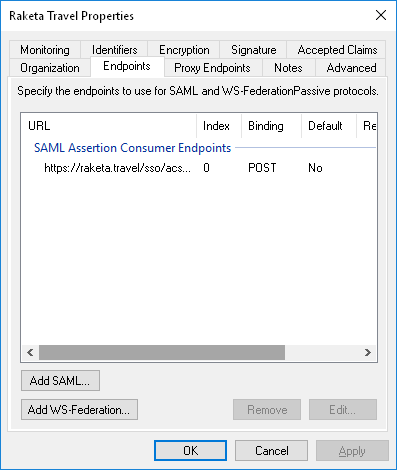
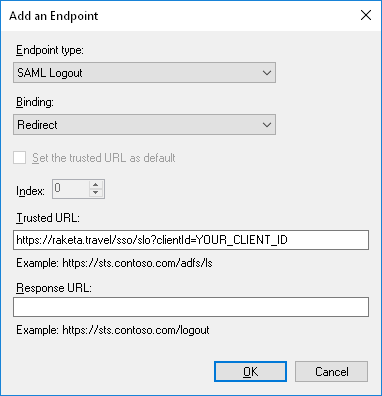
...
Якорь Obtaining the thumbprint of the token signing certificate
| Obtaining the thumbprint of the token signing certificate |
Incoming requests are confirmed on the Raketa Travel side using the ADFS signature token thumbprint. To get it, open a PowerShell console as a user with administrator rights and run the command
Get-AdfsCertificate Token-Signing.
You will find the thumbprint in the Thumbprint output line.
...
Obtaining the thumbprint of the token signing certificate
5. Obtaining of the token certificate
| Obtaining the thumbprint of the token signing certificate |
Open the ADFS management snap-in, select ADFS > Service > Certificates, then double-click on the certificate under Token-signing. You can also right-click the field, then select View Certificate in the context menu.
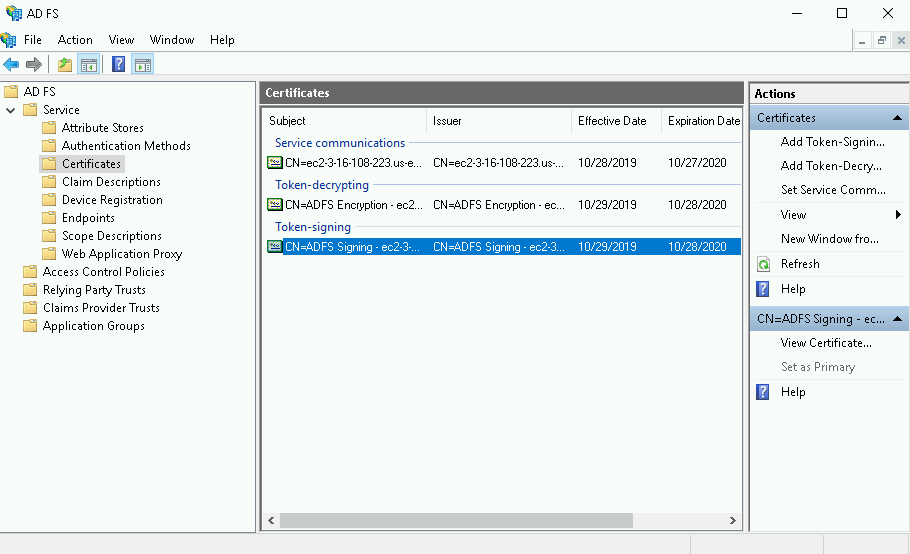
On the Certificate screen, open the Details tab, select Copy to File, then select OK.
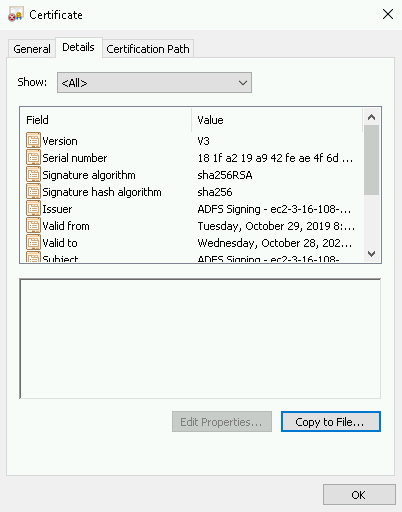
On the Certificate Export Wizard screen, select Next.

Select Base-64 encoded X.509 (.CER), then select Next again.

On the Certificate Export Wizard screen, select Browse to specify the location where you want the Identity Provider Certificate to be exported, then specify the file name.
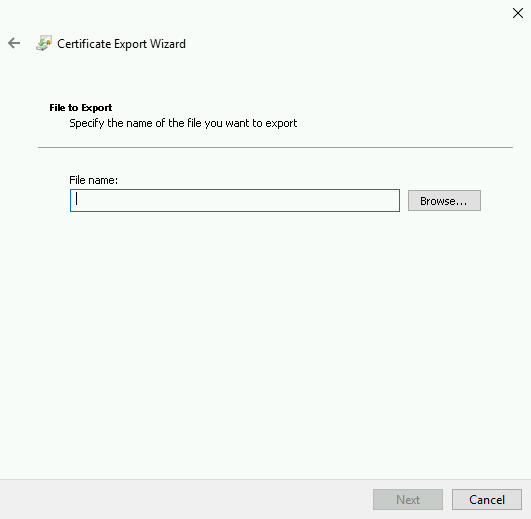
Select Save. On the Certificate Export Wizard screen, verify the file path is correct, then select Next.
In the Completing the Certificate Export Wizard, select Finish, then select OK to confirm the export was successful.
